Summary
Add a single Debug Mode toggle (per run and/or project) that:
- auto-captures step artifacts (screenshots/logs) with minimal setup, and
- on failure, lets me edit the failing step’s code and resume from that exact point.
Current pain
Today I must enable screenshot step by step inside the flow. That’s tedious and easy to miss. When a step fails, I need to rerun the whole flow instead of resuming.
Proposal
- Global toggle
- Turn on Debug Mode once (Run start dialog and Project settings default).
- Option for capture scope: All steps.
- Fix & Resume
- On failure, show the failing step’s code (editable) and its local variables (read-only).
- Resume options: from this step or from previous step.
- Save edits as a new version and show a diff.
Benefits
- Faster debugging (no per-step toggling).
- Less reruns; reproducible runs with artifacts.
- Easier support: share a run link with screenshots/logs and the exact failing step.
Acceptance criteria
- Can enable Debug Mode globally per project and per run.
- Step artifacts are captured automatically according to the chosen scope.
- On failure, I can edit the step and resume without restarting the whole run.
- Edited steps are versioned with diff.
Hi @dudupst ,
Thanks for the feedback. While we are considering your feedback in detail, there are couple of tips that can help you debug faster in case you missed that.
-
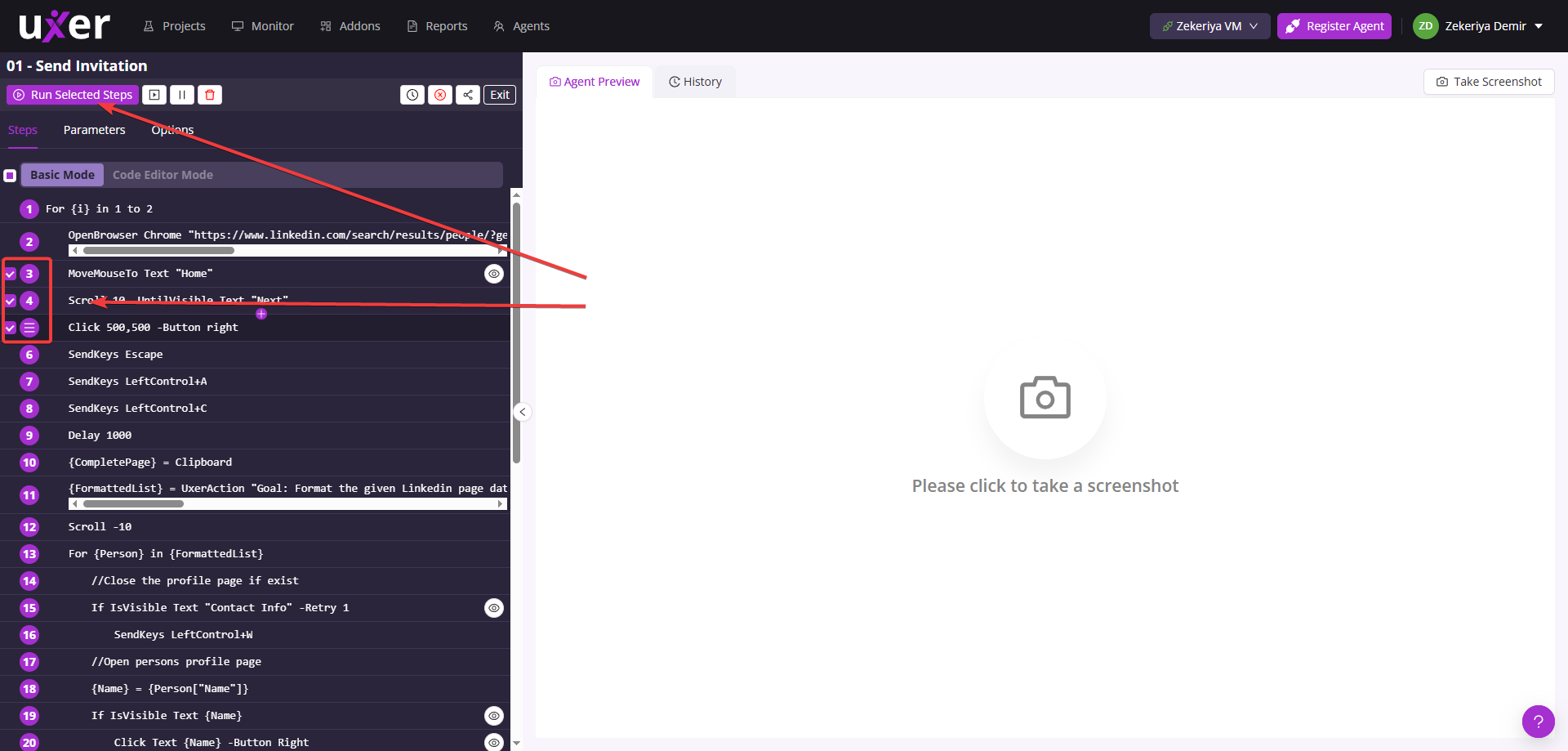
You can run single step or multiple selected steps individually and no need to run all the steps.
-
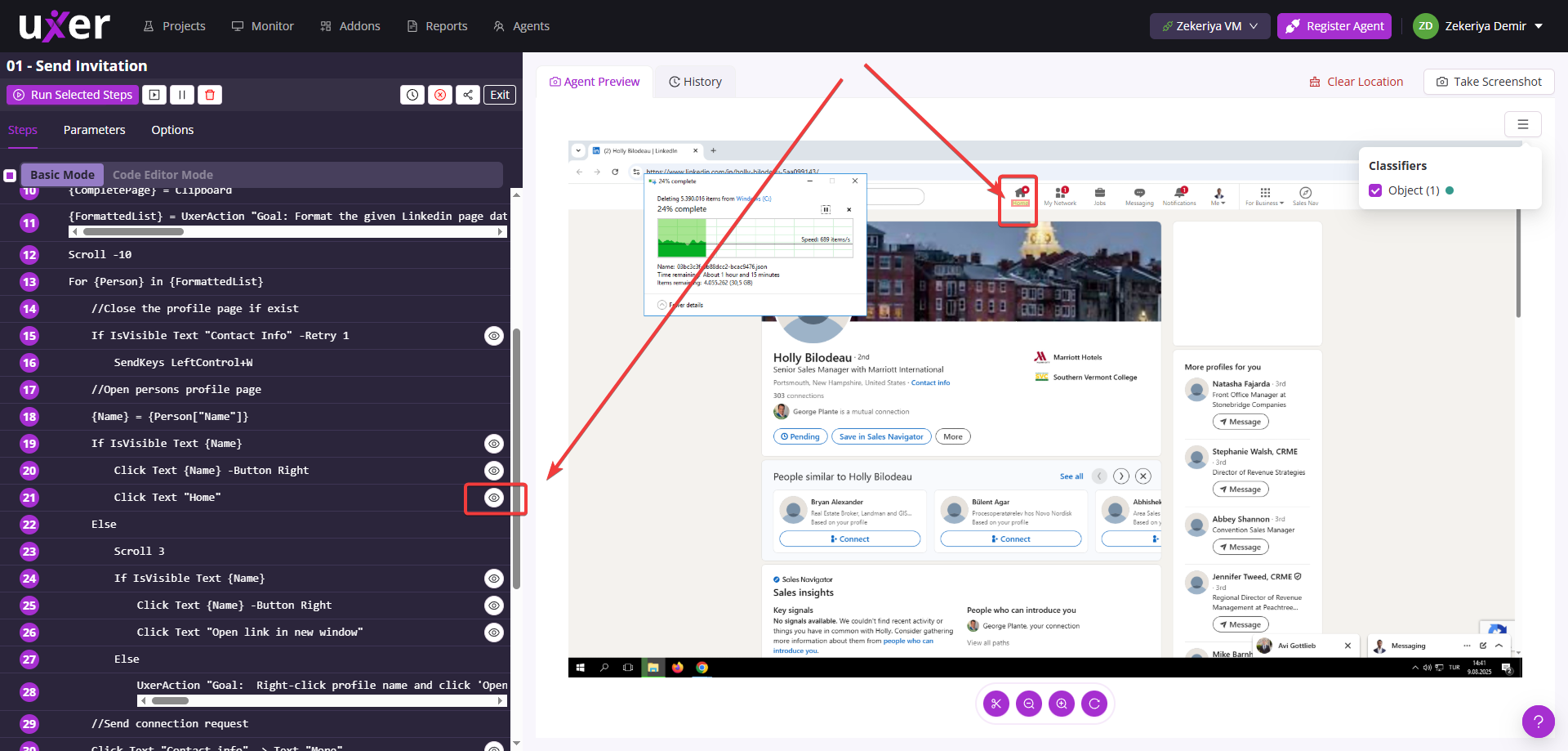
If you are having problems finding a location on a specific screen, you can take a screenshot and see if the location is found on the screenshot just by clicking verify location icon. This way, you can easyly update the location and test it.
Thanks for the feedback — I had actually forgotten about Run Selected Steps.
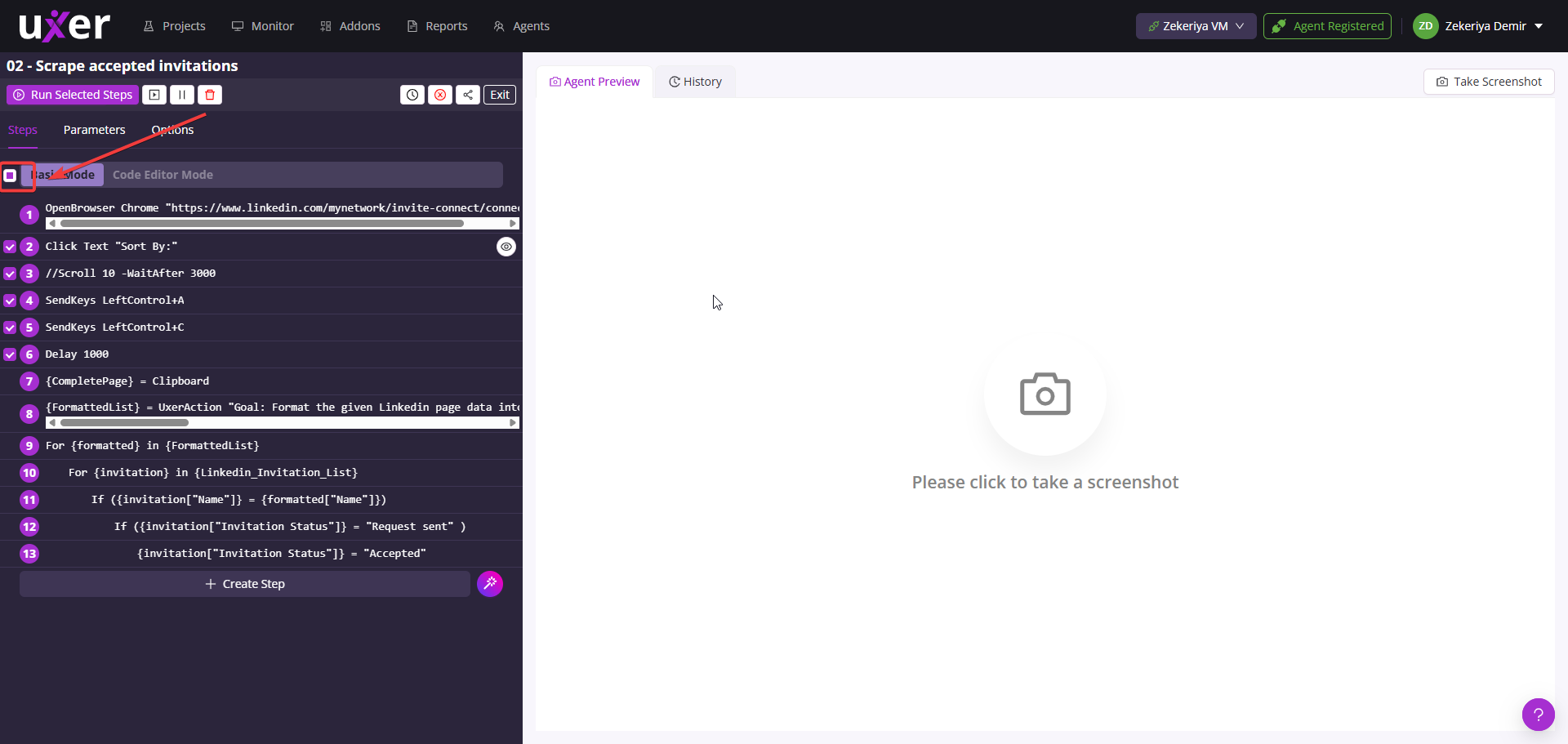
Maybe just adding a more practical way to select steps, instead of having to click them one by one, would already help a lot. Please add bulk selection: Shift-click to select a range, Ctrl/Cmd-click for multi-select, “Select from here to end”, and “Select all (filtered)”. Being able to Run/Disable/Enable on the selected set would speed up debugging a lot.
On point #2, the problem isn’t finding points on the screen.
It’s that sometimes Write or SendKeys commands run in the wrong place, but they don’t throw any error.
This makes it hard to pinpoint exactly where the problem happened.
You mentioned about bulk select and multiple select via shift click.
They are already in place 
On Point #2,
About write and sendkeys related issue you mentioned, those actions will always send keyboard activities regardless of the cursor. Same as you click something on the keyboard if the cursor is not on the place. Your keyboard will actually send the event, but you will see or not see the text based on the expected place. It doesn’t mean that the keyboard didnt work, it means it worked successfully. If the cursor is not on the right place, or if the page is not ready before sending the keyboard event, it has nothing to do with the keyboard events success/failure. You need to be sure that cursor is on the right place / or the page is loaded successfully before sending the write/sendkeys event. They are running pretty fast, so you need to be carefull about it.
1 Like